
Users and invitations
Use the User Management page to see who belongs to your organisation and what each person can do.
Who can use it: Owner and Admin. To open it, choose Admin Portal in the avatar menu, then Settings → Users.
Roles
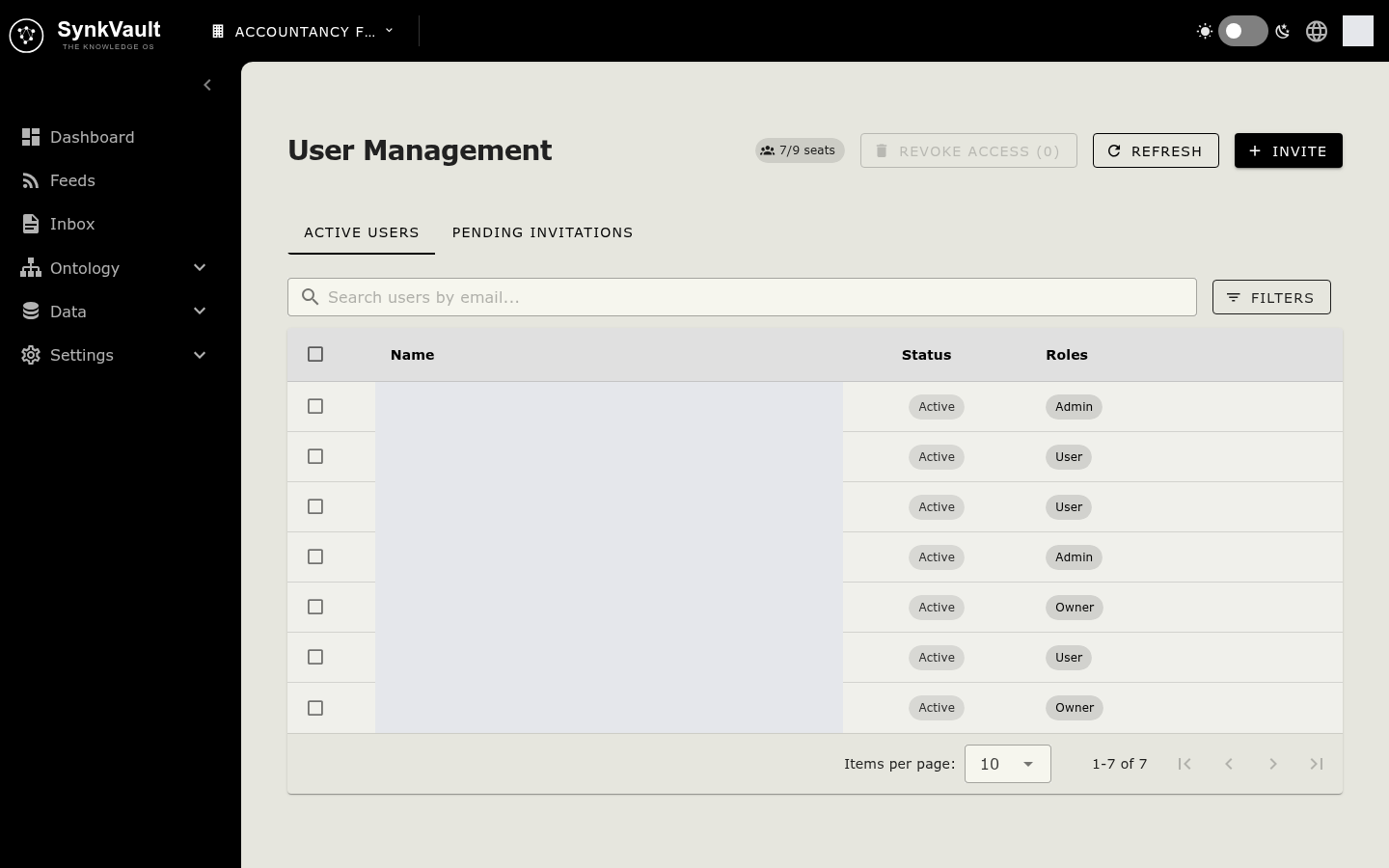
Every member has one role in the organisation.
| Role | What the person can access |
|---|---|
| Owner | Everything an Admin can access. Only Owners can open Billing & Subscription and delete the organisation. |
| Admin | The administration pages: dashboard, users, organisation settings, integrations, ingestion, query, API keys and apps. Also the ontology, document inbox and feed pages. |
| User | The everyday pages only: chat, explorer and My Documents. A User cannot open the administration pages. |
Invite a person
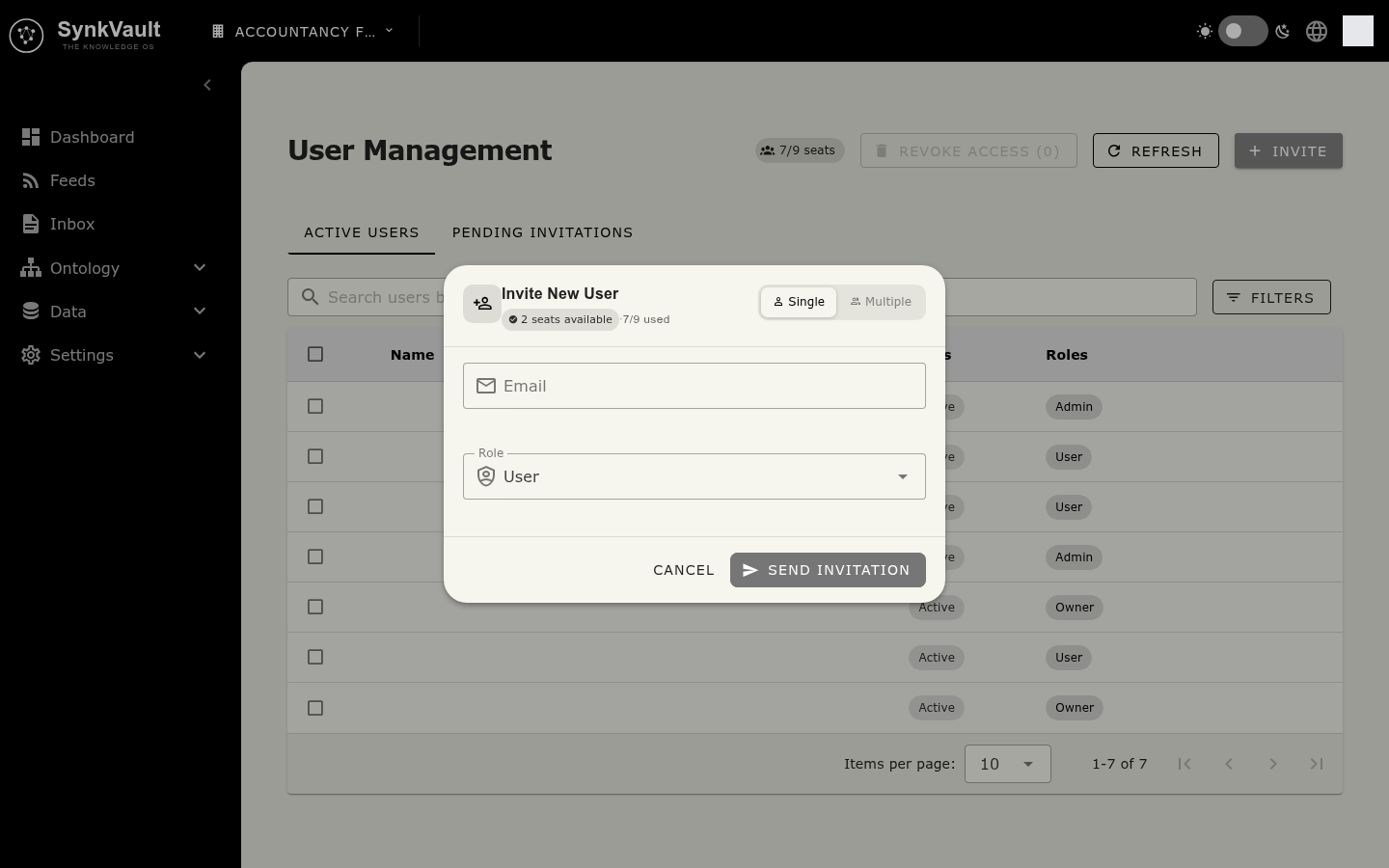
- Select Invite.
- In Invite New User, enter the person's Email.
- Choose a Role: User, Admin or Owner.
- Select Send Invitation.
To invite several people at once, switch the dialog from Single to Multiple. Enter the Email addresses one per line, or separated by commas or semicolons. Choose a Role and select Send Invites. Duplicate addresses are ignored, and a Results list shows who was invited and who failed.
If the person is already registered in SynkVault, they are added to your organisation. If they are already an active member, you see an error and nothing changes.
Change a person's role
- In the Active Users tab, select the person's name to open User Details.
- Select the edit button.
- In Edit User Role, choose a new Role.
- Select Update Role.
Revoke access
- In the Active Users tab, select the person's name, then the revoke button. You can also tick several people and select Revoke Access.
- In Revoke User Access, select Revoke.
Pending invitations
Open the Pending Invitations tab to see invitations that nobody has accepted yet. Each row shows the Email, the Role and Invited On. You can:
- Select the send icon (Resend Invitation) to send the email again.
- Select the delete icon (Remove) to cancel the invitation. Confirm in Remove Invitation.
- Use Search invitations to find an address.