Account settings
Your account settings are the same for every role. Open the avatar menu at the top right and select My Account. The settings have four pages: Preferences, Security, API Keys and Legal. API Keys are covered in the Integrations section.
Preferences
Open Preferences (/preferences). These settings are saved to your account and sync across devices.
- Default Rows per Table: how many rows tables show by default.
- Time Zone: the time zone used to show dates and times.
- Privacy: choose which categories of cookies SynkVault may use. You can change these choices at any time.
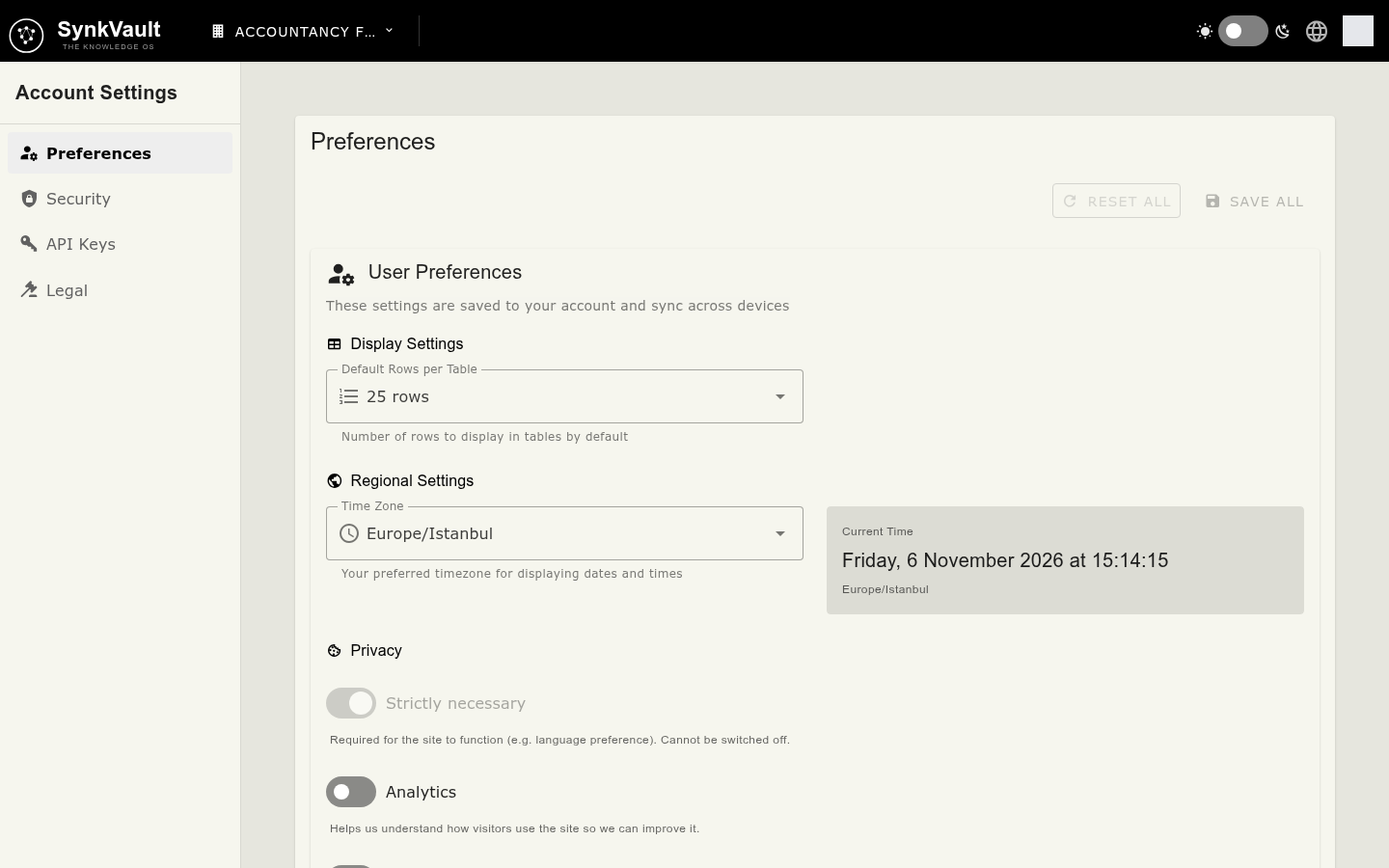
Select Save All to keep your changes, or Reset All to undo them. Both buttons are active only after you change something.
Security
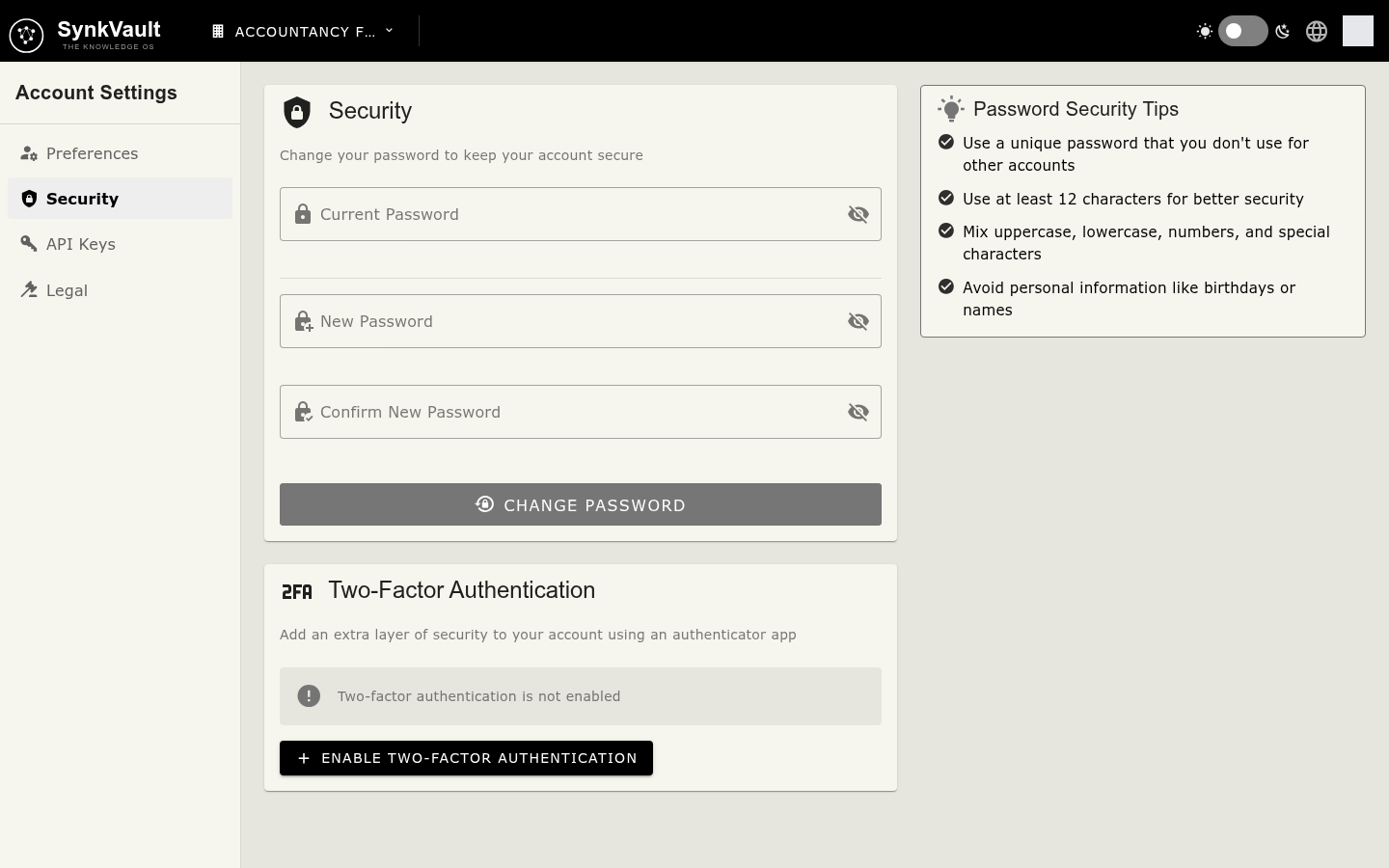
Open Security (/security).
Change your password
Enter your current password
Type it in Current Password.
Enter the new password
Type it in New Password and again in Confirm New Password. A bar shows if the password is weak, medium or strong. Use at least 12 characters, and mix uppercase, lowercase, numbers and special characters.
Select Change Password
SynkVault asks you to confirm with Yes, Change Password. After the change, you are signed out. Sign in again with your new password.
Two-factor authentication
Two-factor authentication adds a second step to sign-in with an authenticator app, such as Google Authenticator or Authy.
Select Enable Two-Factor Authentication
SynkVault shows a QR code. If you cannot scan it, use the Manual entry code.
Scan the code
Scan the QR code with your authenticator app.
Verify
Enter the 6-digit code in Verification code and select Verify. SynkVault shows Two-factor authentication enabled.
Under Enrolled authenticators you see each authenticator with its status (Verified or Unverified) and the date added. Select Remove to remove one. You will no longer be asked for a code from it when you sign in.
Legal
Open Legal to read the Product Privacy Notice and the Data Processing Agreement. Each shows its version and the date it was last updated.
Theme and language
These two controls are in the top bar on every page.
- Theme: use the switch with the sun and moon icons to change between light and dark.
- Language: select the globe icon and choose English, Arabic or Turkish. SynkVault remembers your choice in this browser.