
Documents inbox
The Inbox (/documents, sidebar Inbox) lists every document in your organisation and how far each has got. It is for Owners and Admins.
What the table shows
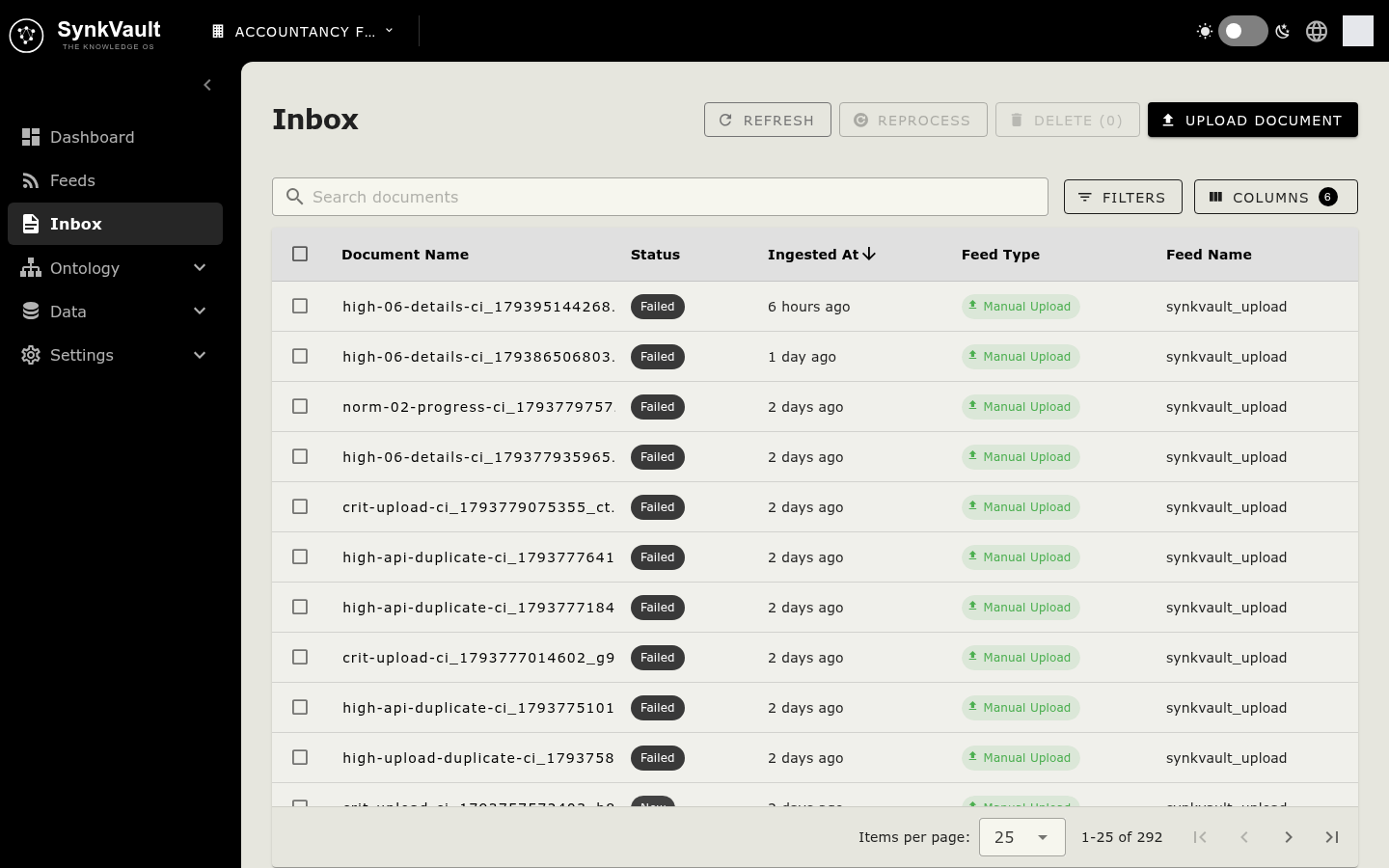
By default you see the document name, Status, who created it and when. A column picker lets you add more: Pages, Conversion Time, Extraction Time, Ingested At, Last Modified, Size, Feed Type and Feed Name. The last two tell you whether a document came from a feed.
The table updates live as documents move along. Use Refresh to reload it.
Statuses
| Status | Meaning |
|---|---|
| New | The document has arrived and has not started processing. |
| In Process | SynkVault is reading it. |
| Failed | Processing did not complete. |
| Done | Processing finished and the document is ingested. |
| Deletion Failed | A delete was requested but did not complete. |
Find a document
- Type in Search documents to search by file name or document class.
- Filter by Status or From Date. Select Clear Filters to reset.
- Click a column heading to sort. The newest documents come first by default.
Upload a document
Open the upload dialog
Select Upload Document.
Add files
Drop files into the dialog, or select Browse Files. Supported formats are PDF, RTF, Markdown, Word (.doc, .docx), Excel (.xls, .xlsx), CSV and plain text.
Wait for the result
Each file shows its progress. A summary tells you how many uploads succeeded. A file SynkVault already has is reported as a duplicate. A failed upload shows its error.
After upload, the new row appears with the status New and moves through In Process to Done.
Open a document
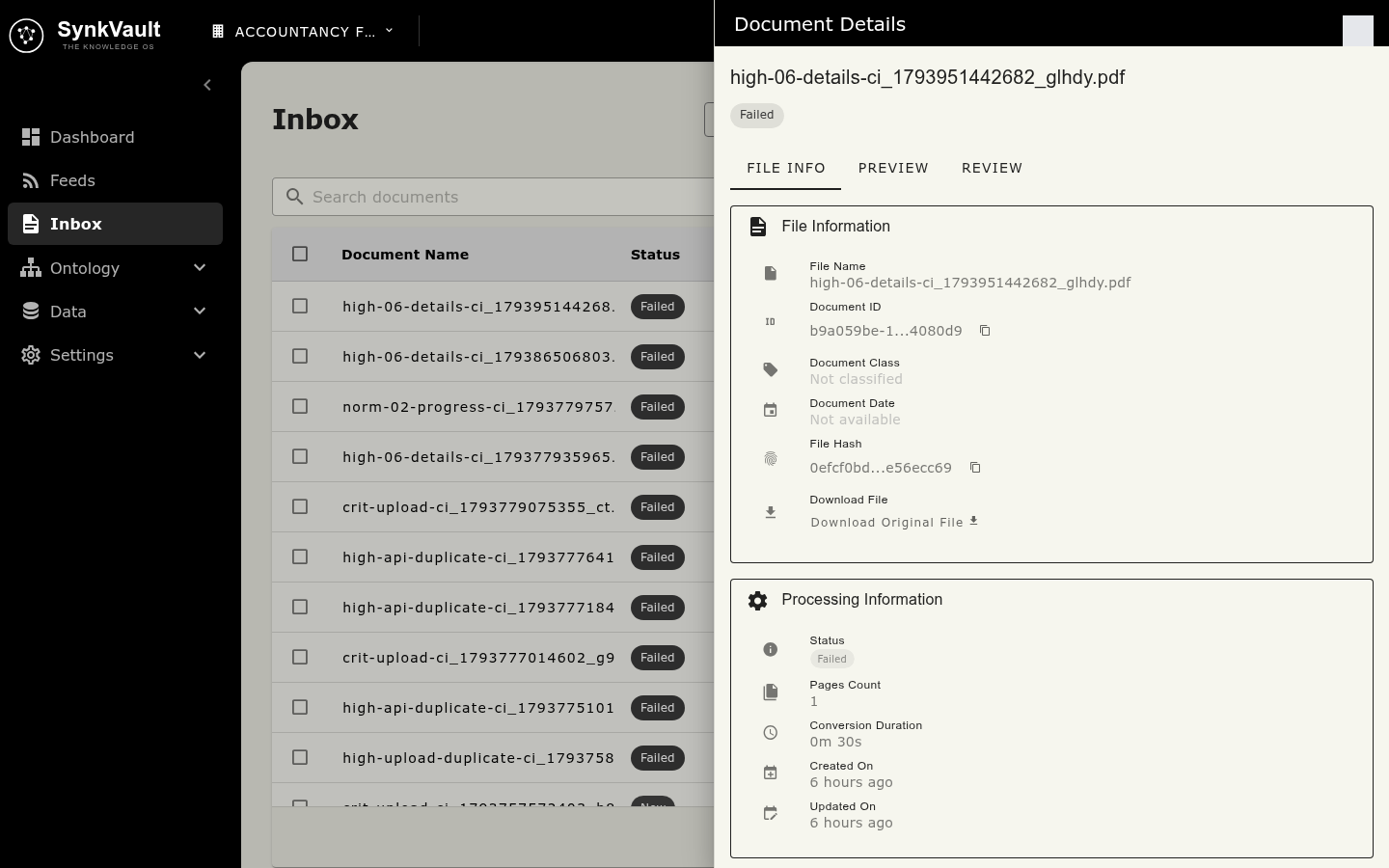
Click a row to open Document Details. It has these tabs:
| Tab | What it shows |
|---|---|
| File Info | Details about the file. |
| Extracted Properties | The properties SynkVault read from the document, matched to your ontology. Shown once they exist. |
| Preview | The document as readable text. Shown once it has been converted. |
| Review | Shown for documents with the status Failed or that need review. |
Click a document's name to preview the original file.
Reprocess a document
If you changed the ontology, or want to read a document again, select its row, then Reprocess. The button is enabled only when exactly one document is selected and its status is Done. A message confirms "Document reprocessing started successfully".
Delete documents
Select
Tick the box on each row you want to remove. The Delete button shows how many are selected, for example Delete (2).
Confirm
Select Delete. The dialog asks "Are you sure you want to delete the selected…?" and warns that this action cannot be undone. Select Delete to continue.
Deletion runs in the background. A message says "Deletion started", and you can Refresh to see the outcome. A document that could not be removed shows Deletion Failed.