
Nodes and properties
The Editor (/ontology, sidebar Ontology then Editor) is where you shape the ontology by hand. It is for Owners and Admins.
Find your way around the editor
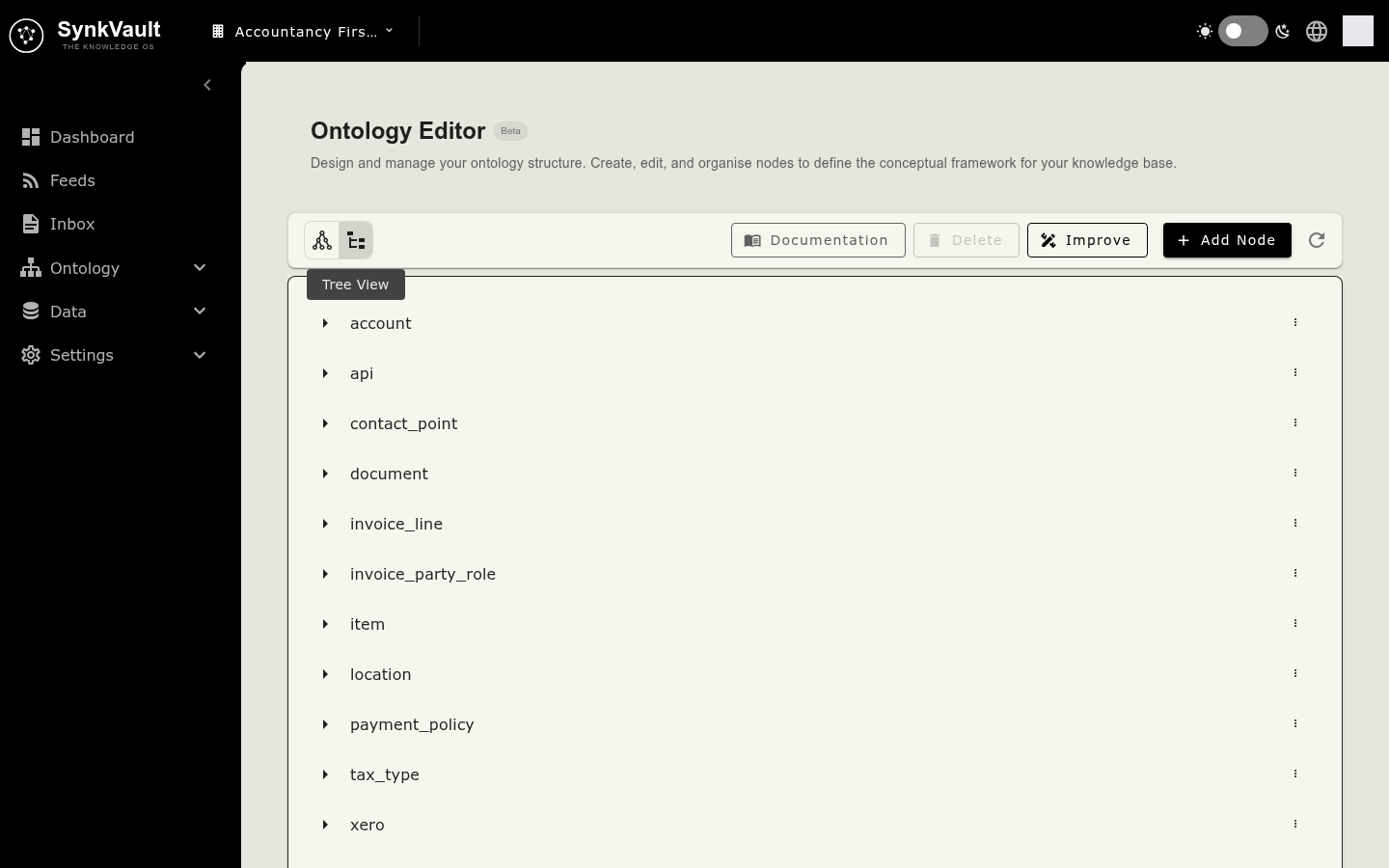
The toolbar above the ontology has these controls:
| Control | What it does |
|---|---|
| Graph and tree toggle | Switch between Graph View and Tree View. |
| Documentation | Opens a readable summary of the whole ontology. It has Copy and Download buttons. |
| Delete | Deletes the selected node. It is disabled for the root node and the top-level document node. Hover to see why. |
| Improve | Opens the draft workflow. See Improve with drafts. |
| Build with AI | Appears only while the ontology is empty. |
| Add Node | Opens a form for a new node. |
| Reload Ontology | Refreshes the view. |
Add a node
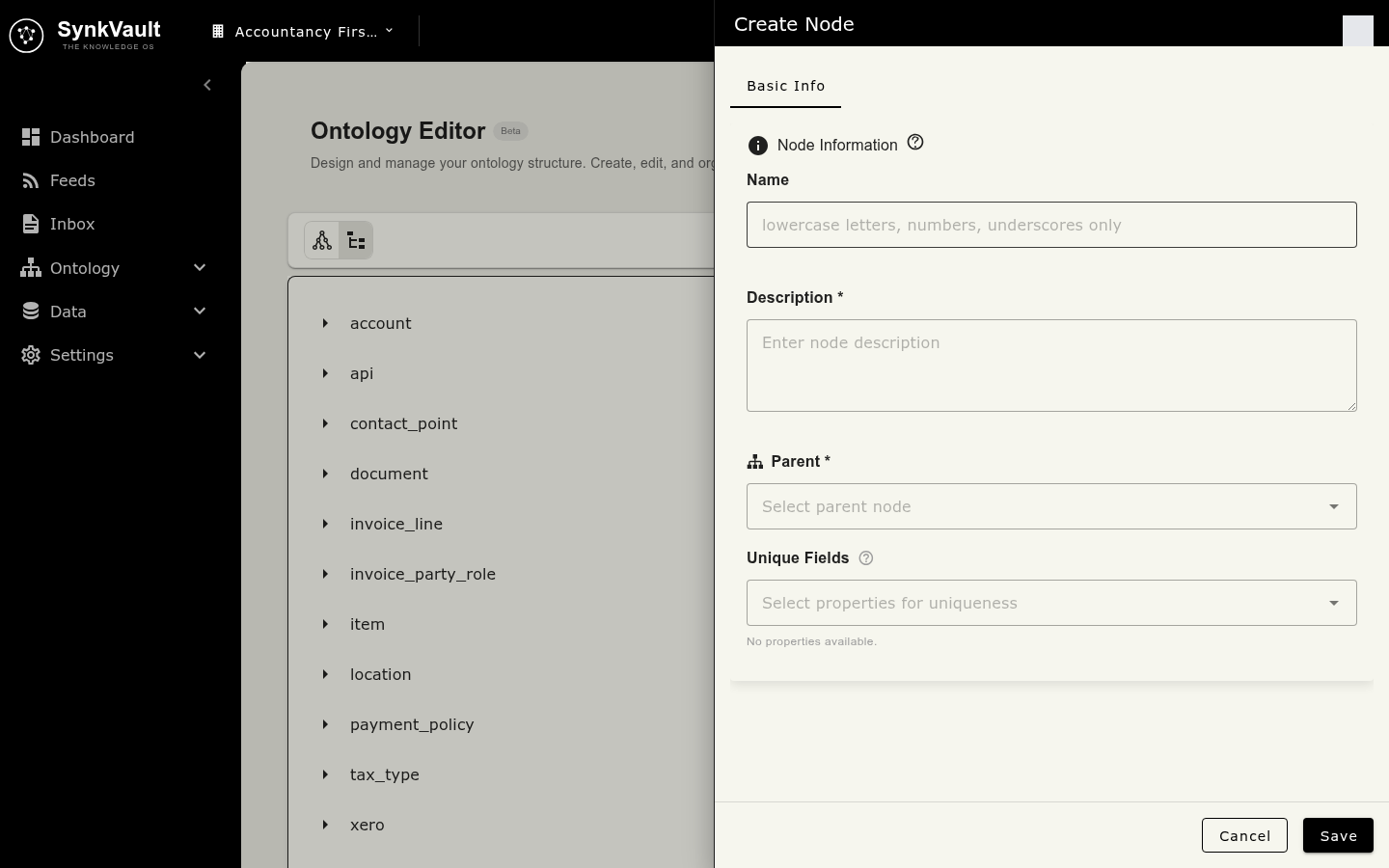
Open the form
Select Add Node. The Create Node drawer opens.
Fill in the basics
Complete Name, Description and Parent. Description and Parent are required for a new node. The name may contain only lowercase letters, numbers and underscores, must start with a letter and must be unique among nodes with the same parent.
Save
Save the node. Then open Own Properties to add its properties.
Node details
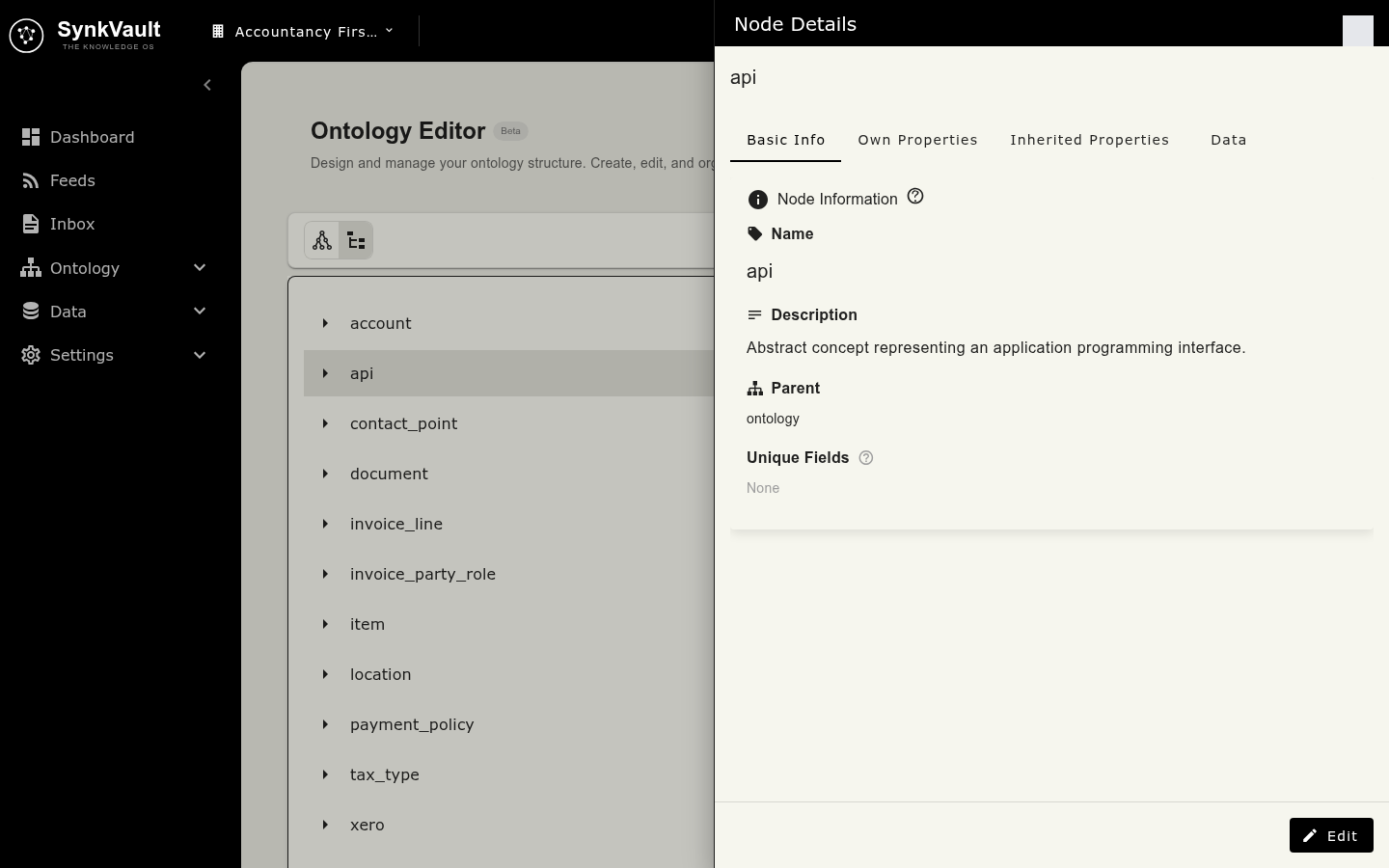
Select a node to open Node Details. The drawer has four tabs.
| Tab | What it shows |
|---|---|
| Basic Info | Name, Description, Parent and the properties that make a record unique. Use Edit at the bottom to change them. |
| Own Properties | Properties defined on this node. |
| Inherited Properties | Properties passed down from the parent and ancestors. Each shows where it came from, for example "From document". |
| Data | How records of this node are shown and who can edit fields. Admins see Layout, Security and Records settings here. |
The root node carries a Root Node chip. You cannot edit or delete it.
Own and inherited properties
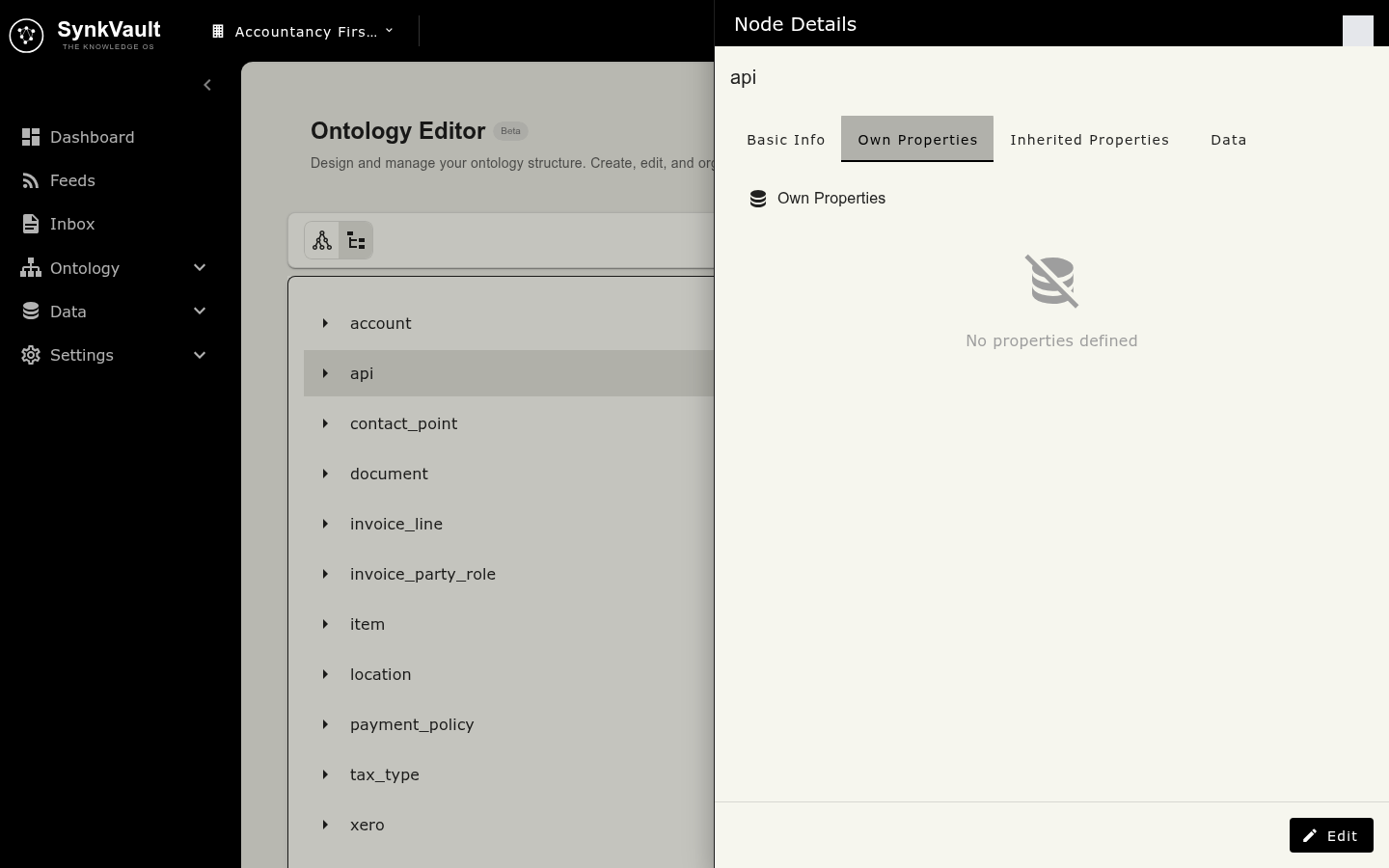
A node has all the properties of its ancestors plus its own. This keeps definitions in one place. If a node defines a property with the same name as an inherited one, it is marked Override.
Use Copy Properties on either tab to copy the list so you can reuse it.
Add a property
Open Own Properties
In Node Details, go to Own Properties. Select Add Property.
Name and type it
Enter the property Name, then choose its Property Category and Type.
Set the options
Switch on Required if every record must have a value, and Array if it can hold several values.
Save
Save the property. It appears in the table. Select a row to see Property Details, where you can use Edit Property or Delete Property.
Property categories
| Category | Use it for |
|---|---|
| Primitive | Simple values such as text, numbers, dates and true or false. |
| Node Reference | A link to another node. This is how you build relationships. |
| Static Reference | A link to a shared reference. |
| Enum | A fixed list of allowed values. Enter them comma separated, or one per line under Options. |
| Geographical | Places, such as a Geo Point. |
| World Wide Web | URL, Image or Video values. |
Use the search box and the All, Required and Optional filters to find a property in a long list.
Relationships
To connect two kinds of record, add a property in the Node Reference category and pick the node it points to. For example, an invoice node can have a property that points to a company node. In the property table the target is a link, and selecting it opens that node.
Delete a node
Select the node, then Delete, and confirm. The dialog asks "Are you sure you want to delete…?" and states that the action cannot be undone. If documents refer to the node, SynkVault stops you and asks you to remove those references first.