
History and management
These two pages are for Owners and Admins. Find them under Ontology in the sidebar.
History
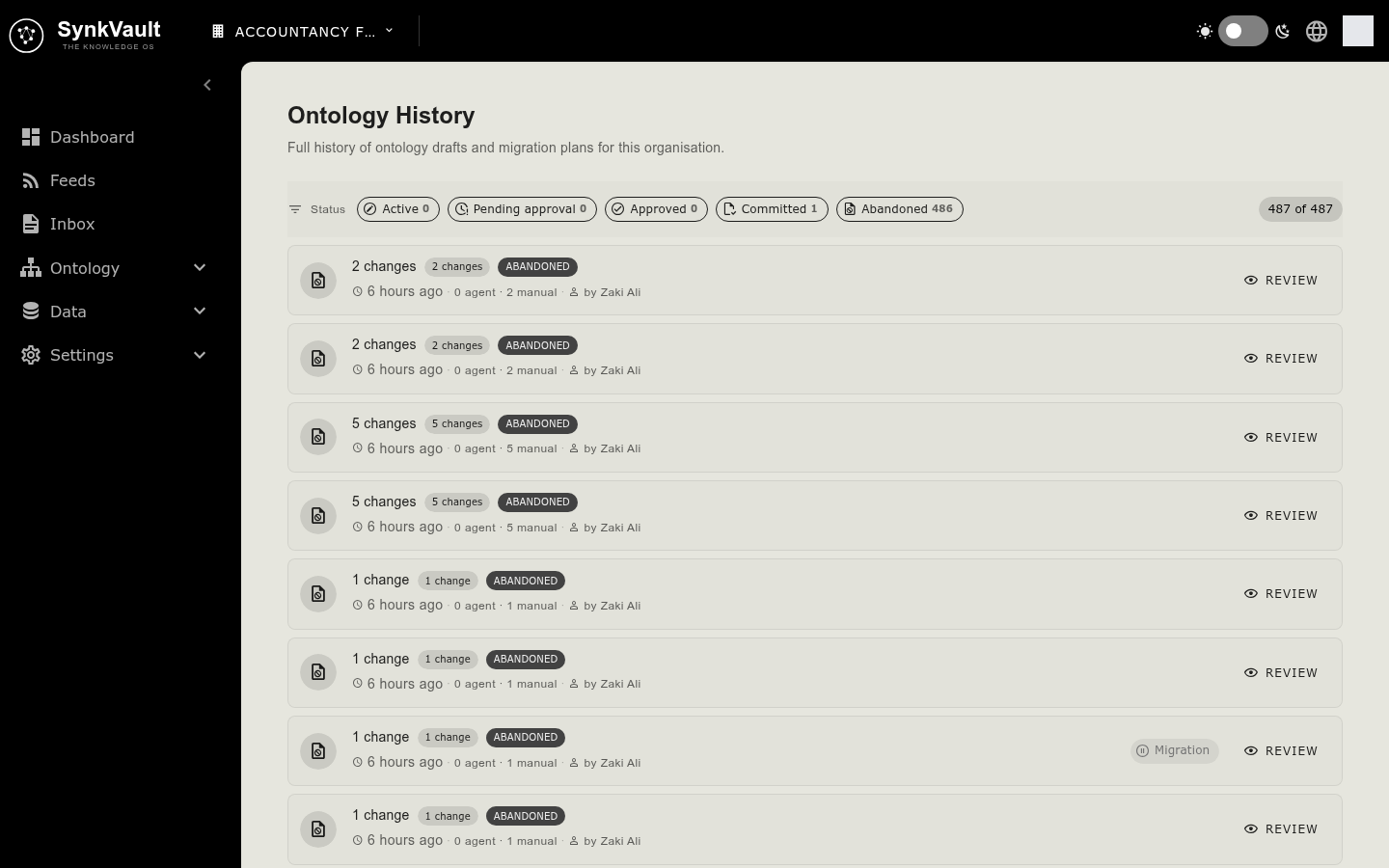
History (/ontology/history) is a full record of ontology drafts and migration plans for your organisation.
- Each row is a draft. It shows its status, the number of changes, who made them, and how many came from the Agent and how many were Manual.
- Filter with Status: Active, Pending approval, Approved, Committed or Abandoned.
- Select Review to open the Change Timeline. It is read-only.
- A Migration chip opens the Migration Plan for that draft, with each step, its target, affected documents, duration and status. Committed migrations cannot be changed.
Management
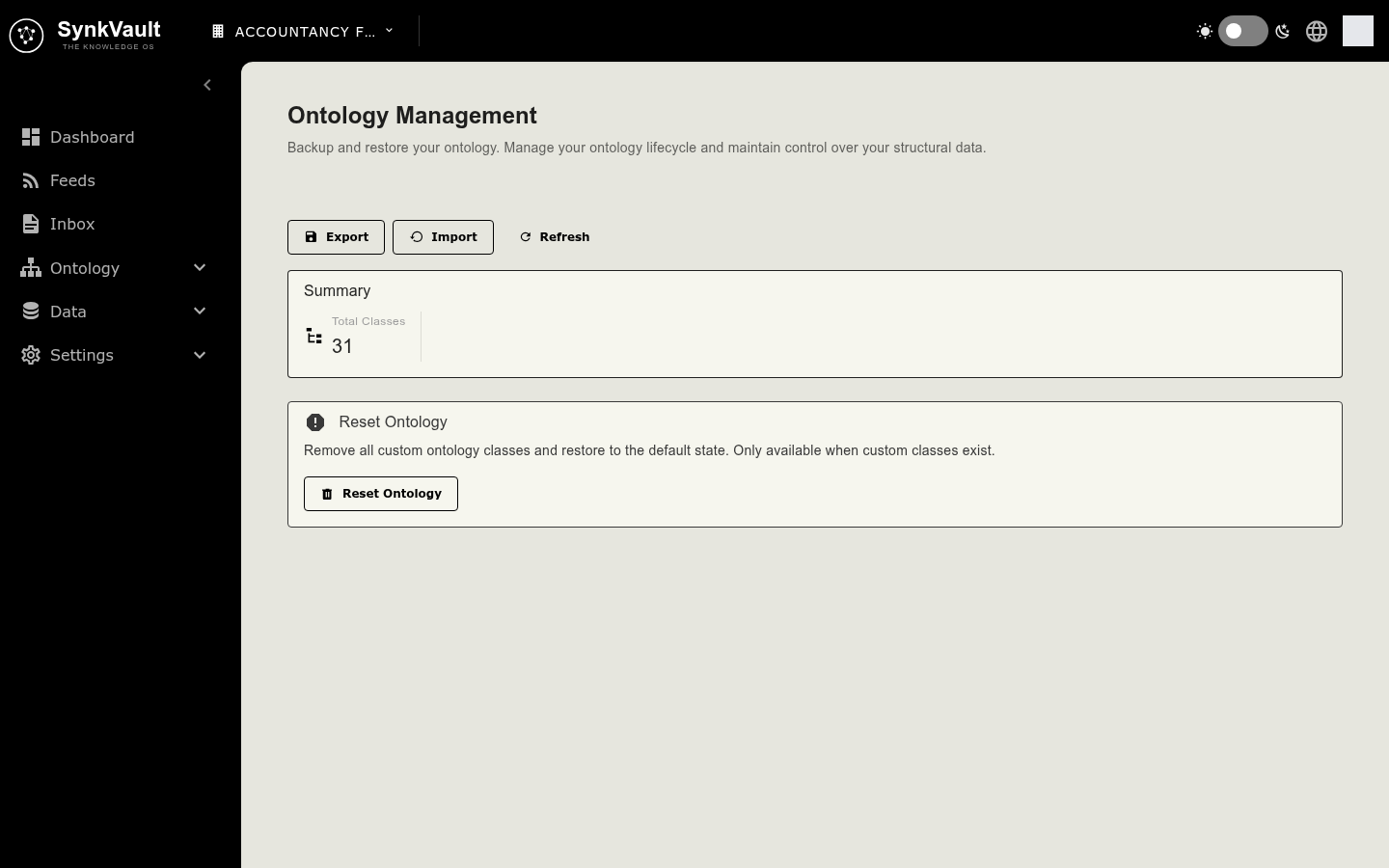
Management (/ontology/Management) has four parts.
Summary
Total Classes and Orphaned Classes. A table lists orphaned classes: classes with no children that no documents refer to. Search it, or Refresh it.
Export
Select Export to download your ontology as a file.
Import
Select Import and choose a JSON file exported from SynkVault.
Choose the file
SynkVault checks it and shows a preview: how many classes, properties and references are New, Updated or Unchanged, plus any Warnings.
Read the mode
The preview says what will happen: Creates a new ontology, Merges into the live ontology or Opens a draft. A merge replaces what the file states and deletes nothing.
Confirm
Select Import in the Confirm Import dialog. Large ontologies can take up to a minute, so keep the page open.
If draft mode is on and you already have ingested documents, an import opens a draft instead. It must then be submitted, approved and migrated, and nothing live changes at once.
Reset
Reset Ontology removes all custom classes and restores the default state. It is only available when custom classes exist. A dialog warns "This will permanently delete all ontology classes and restore the default structure. This cannot be undone." Select Reset to proceed.