Triggers and history
A feed does nothing until it has a trigger. A trigger decides when the feed runs. History then shows every run and any error. Both are for Owners and Admins.
Trigger types
| Type | When it runs |
|---|---|
| Scheduled (Cron) | On a schedule you write as a cron expression. Only available when every parameter is locked. |
| On Instance Create | When a new record of the chosen node is created. |
| On Instance Update | When a record of the chosen node is updated. |
| Manual | On demand, when you select Run Now. |
Add a trigger
Open the source
In Feeds, open the source and go to its Triggers tab. After you create a feed from the catalogue, you land here already. Select Add Trigger, or Add Your First Trigger if there are none.
Name it and pick what to run
Enter a Trigger Name. For REST API sources choose the Endpoints to Execute.
Choose the type
Pick one of the types above. For Scheduled (Cron), fill in the Schedule (Cron Expression). For the instance types, choose the Node Type to Watch and map each dynamic parameter to a property of that node.
Test the endpoint, if asked
Some triggers ask you to run Test Endpoint first. Select Run Test. You see Test Passed or Test Failed before you can activate it.
Activate and save
Use the switch to set the trigger to Active. Select Create.
The Triggers tab on the Feeds page
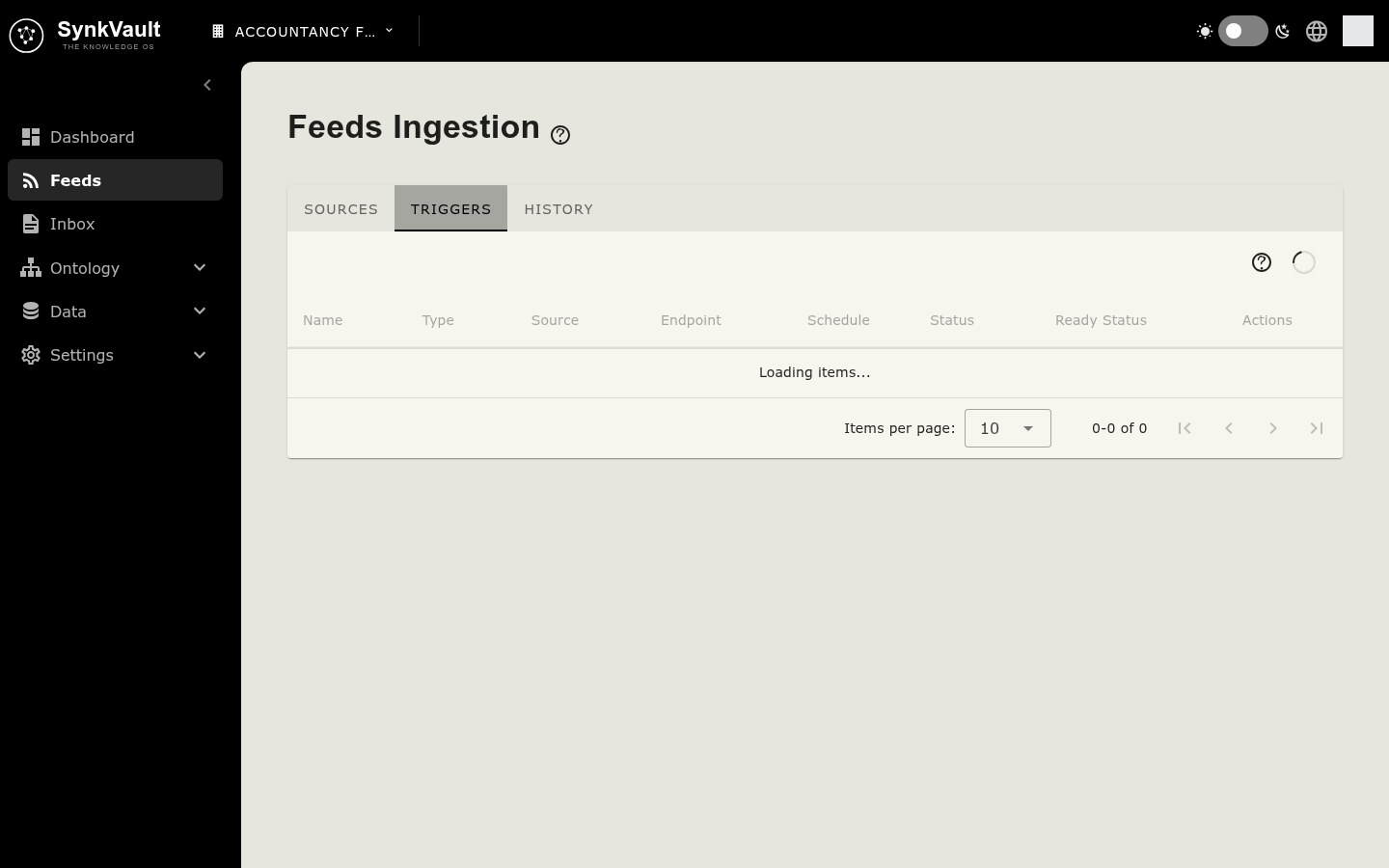
The main Triggers tab lists triggers from every source, with their type, the source, the endpoint, the schedule or event, Status and Ready Status. Ready means the source and the trigger are both active. Not Ready shows which one is not, when you point at it. Click a row to open its source.
Run a trigger by hand
Find a manual trigger
Manual triggers show a play button.
Run it
Select the play button. In the Run Now dialog, you may override input parameters for this run. Leave them blank to use the defaults.
Start
Select Run Now. A message confirms "Trigger executed successfully", or explains the failure.
The play button is disabled until both the trigger and the source are Active. Point at it to see which is missing.
Job history
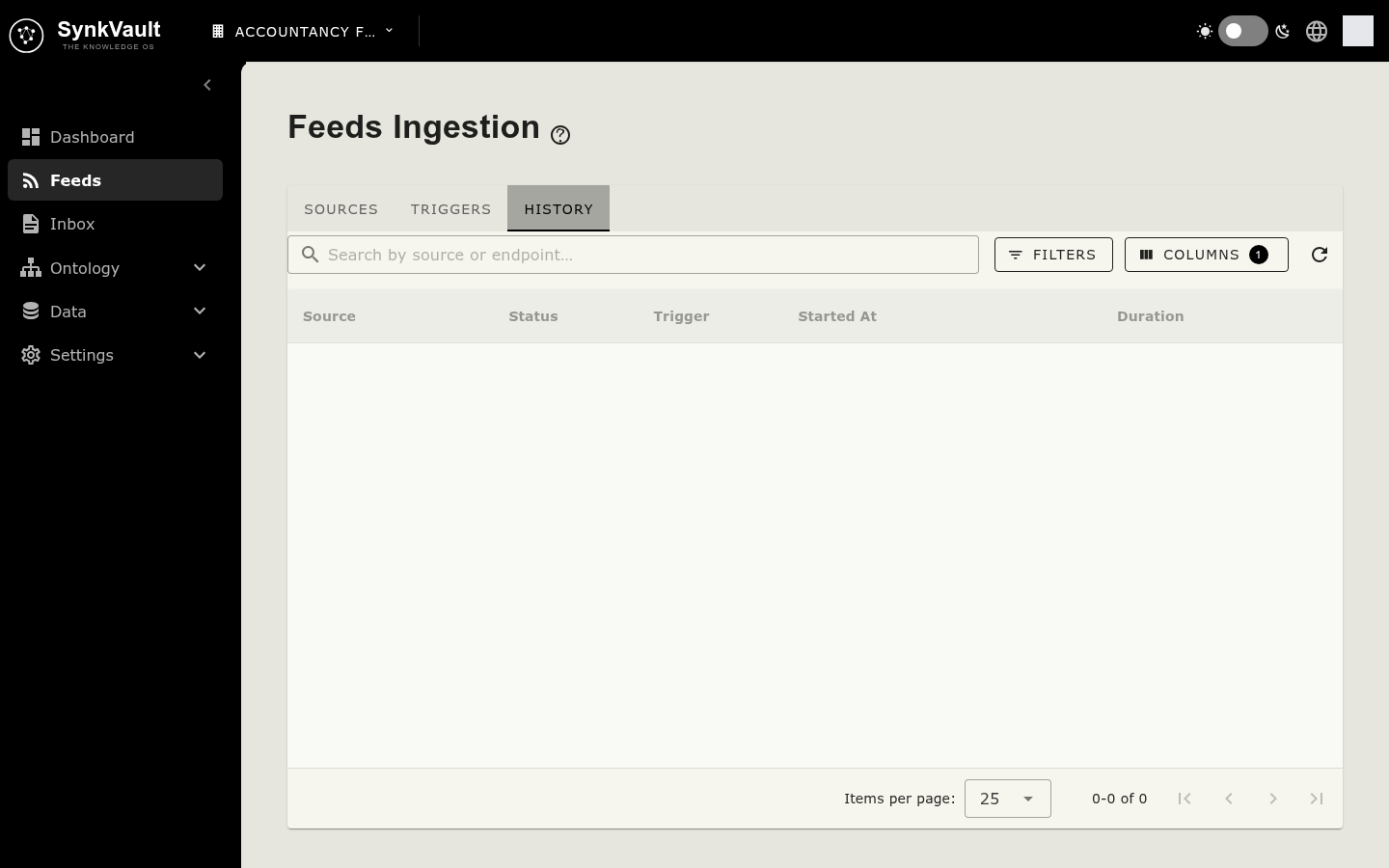
Open the History tab on the Feeds page to see every run.
| Column | Meaning |
|---|---|
| Source | The feed that ran. |
| Status | Scheduled, Pending, Published, Processing, Completed or Failed. |
| Trigger | Scheduled, On Create, On Update or Manual. |
| Started At | When the run began. |
| Duration | How long it took. |
You can search by source or endpoint and filter by Feed, Status, Trigger and Date Range. Select the refresh button to reload. With no runs yet, you see "No jobs yet".
Read an error
Click a job to open Job Details. It has the General and Timing sections and, for a failed job, an Error section with the Error Type and Error Message. Trigger Inputs shows what the run was given. Job Source Input lets you View, Copy Content or Download what the job received.
If a job failed, check the error message first. Common causes are a missing or expired credential, an inactive source, or a provider that rejected the request.