
Create a feed
A feed keeps your knowledge base up to date from an outside source. You pick a provider, fill in a short form, test it, then decide when it runs. Feeds are for Owners and Admins.
Before you start
- Some providers need a credential. You create credentials under Integrations, then choose one in the form. Read the credentials pages in the Integrations section first.
- Think about which ontology node the content should become. You choose this later, when you create a trigger.
Open the catalogue
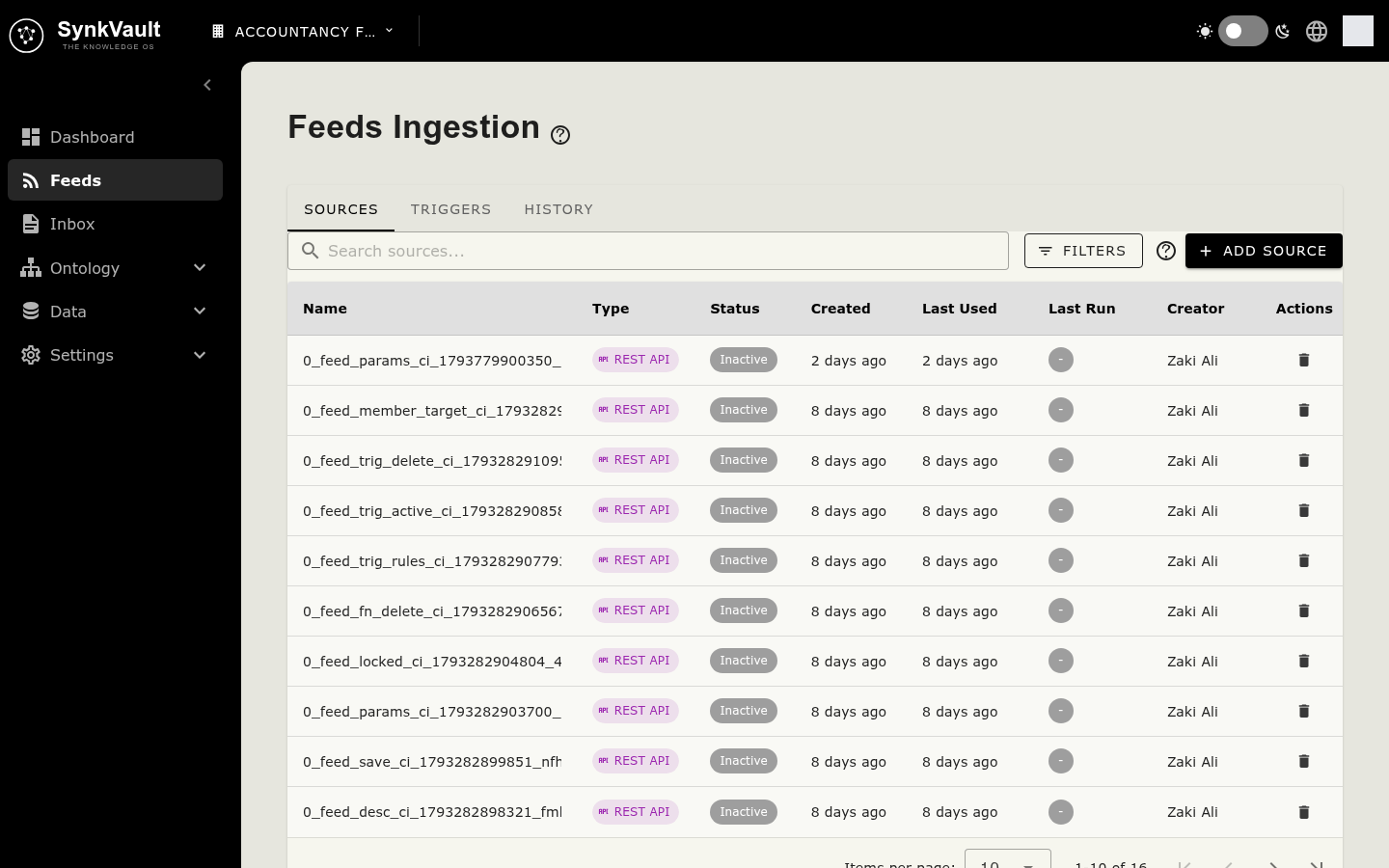
Go to Feeds in the sidebar (/feeds). The page, Feeds Ingestion, has three tabs: Sources, Triggers and History. On Sources, select Add Source. The Add feed window opens, with providers on the left and a form on the right.
Use the search box to find a provider. Providers are grouped, for example Search, Web and Custom.
Providers you can use
| Provider | What it does |
|---|---|
| Brave News | News search by topic. Optionally limit it to a list of outlets. |
| Generic RSS / Atom | Any public RSS or Atom feed, by URL. |
| Website | Crawl and monitor any public web page. |
| Custom REST API | An advanced builder that connects to any REST API with full parameter control. |
Providers marked Soon are not available yet. You cannot select them.
Fill in the template
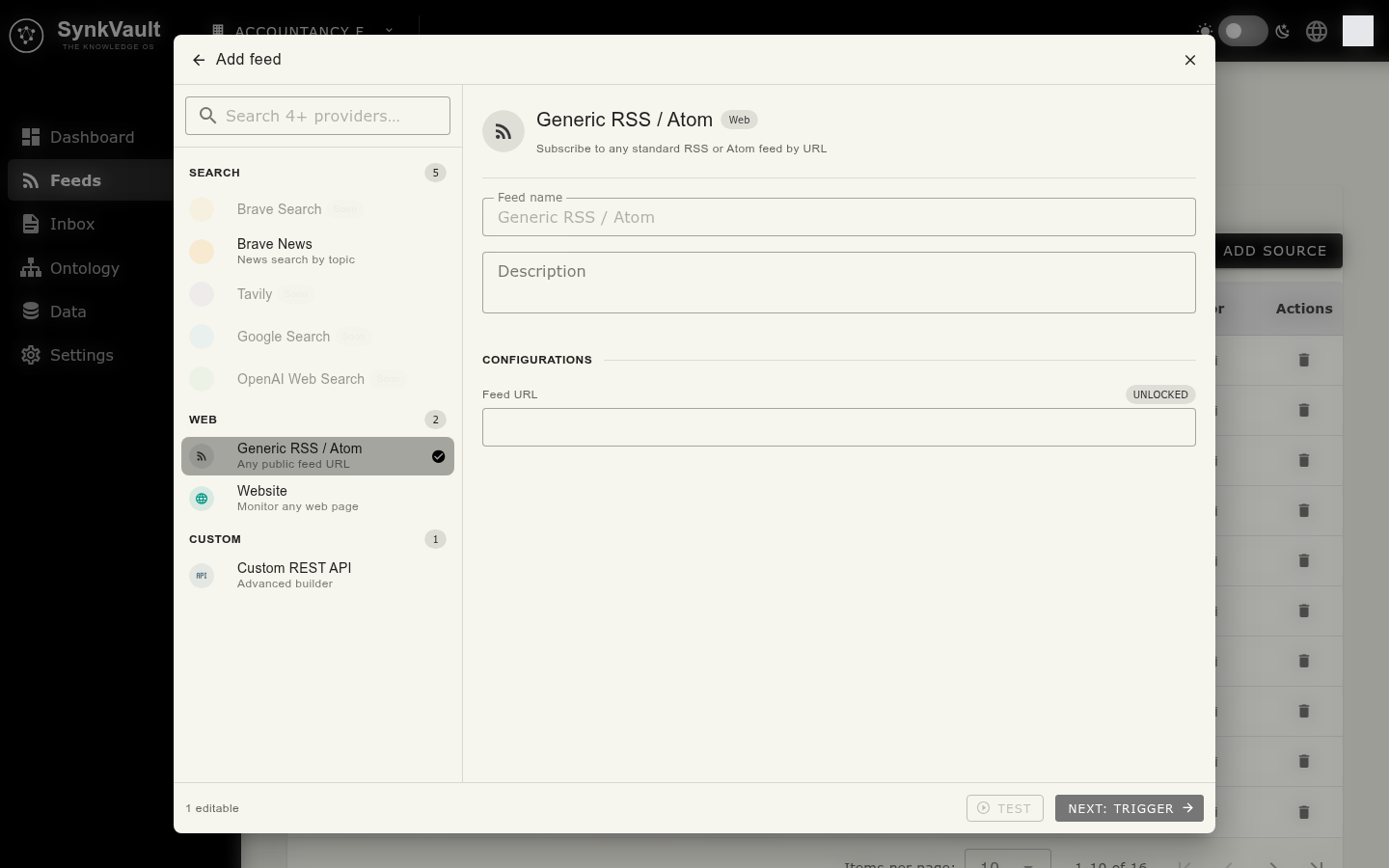
Choose a provider
Select a provider. Its form appears. Until you do, the window says "Select a provider to load its template".
Name the feed
Enter a Feed name. Add a Description if you like. It is optional.
Pick a credential, if asked
Providers that need one show a Credential field and the note "Requires a credential from Integrations". Choose an existing credential. Select Add new integration… to create one first. Brave News does not force one. It has an optional API key, stored encrypted, and you can link an integration on the source page later.
Set the configurations
Under Configurations you fill in the editable settings. For example, Brave News asks for a Search query, Approved domains, Freshness, Country bias and languages. Generic RSS / Atom asks for a Feed URL. Website asks for a Page URL and a Crawl depth. Required fields must be filled before you can continue.
Test it
Select Test. SynkVault makes a sample request and reports Connection successful with how many results came back, or Connection failed with the field to check. It also shows Sample result 0.
Continue
Select Next: Trigger. SynkVault creates the feed and takes you to the new source with the Triggers tab open, where you set when it runs.
Locked settings
Some settings are fixed by the template. The form lists them as LOCKED under Template-managed, with a count such as "2 locked", and shows how many are editable. You cannot change them in this form. Locked parameters always keep their default value when the feed runs.
After you create the feed
Open the source from the Sources table (columns include Name, Type, Status, Last Run). Its page has the tabs Basic Info, Configs, Functions (REST API feeds only) and Triggers.
- Basic Info: name, description, Status (Active or Inactive) and weight. A feed only runs while its status is Active. Select Save to keep changes.
- Configs: edit the fields you filled in when you created the feed.
Continue with Triggers and history.