Your organisation
What is an organisation?
An organisation is your team's private space in SynkVault. Your documents, knowledge base, chat sessions and settings all belong to one organisation. You only see the data of the organisation you are working in.
The name of your current organisation is shown at the top left of every page, next to the SynkVault logo.
Switch organisation
If you belong to more than one organisation, you can move between them.
Open the organisation selector
Select the organisation name at the top left.
Choose an organisation
Select another organisation in the list. Your current organisation is highlighted, and your default organisation has a Default label.
Wait for the page to reload
SynkVault saves your choice and reloads the page. You now work in the new organisation.
Add an organisation
Select Add Organization at the bottom of the organisation list. Enter an Organization Name (at least 3 characters, and not already taken) and an optional Description (optional), then select Create Organization.
If you have no organisation yet, SynkVault takes you to this page when you sign in.
Roles
Every member has one role in each organisation.
| Role | What you can do |
|---|---|
| Owner | Use SynkVault and manage the organisation, like an Admin. |
| Admin | Use SynkVault and open the Admin Portal to manage the organisation. |
| User | Use SynkVault: chat, explorer and your own documents in My Inbox. |
All roles can use Chat, the Explorer and My Inbox.
User Portal and Admin Portal
Owners and Admins can work in two areas.
- User Portal: the everyday area for chat, explorer and your documents.
- Admin Portal: the area for managing your organisation.
To move between them, open the avatar menu at the top right and select Admin Portal or User Portal. Users without an admin role do not see this option.
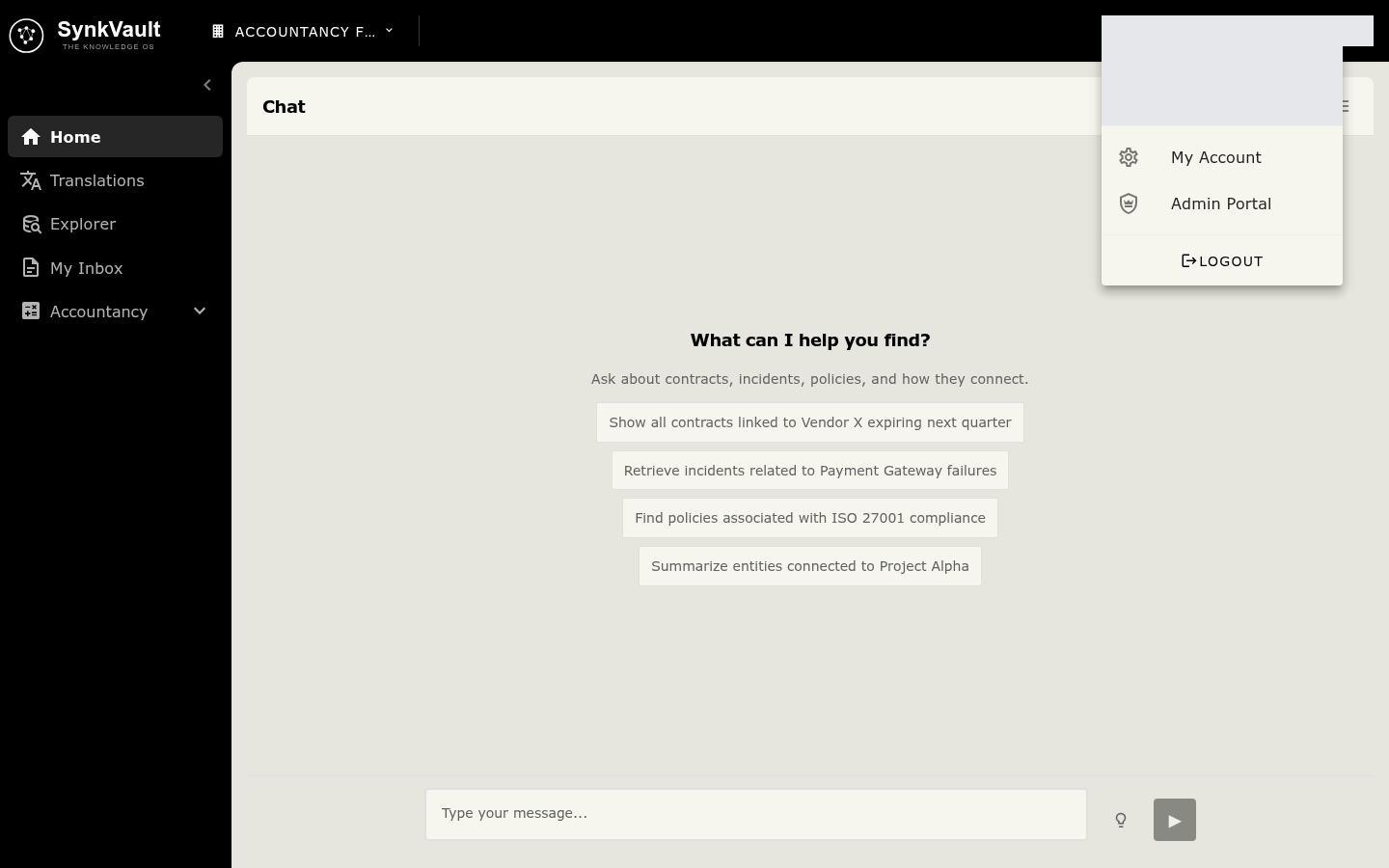
The same menu has My Account, which opens your account settings, and Logout.