Chat
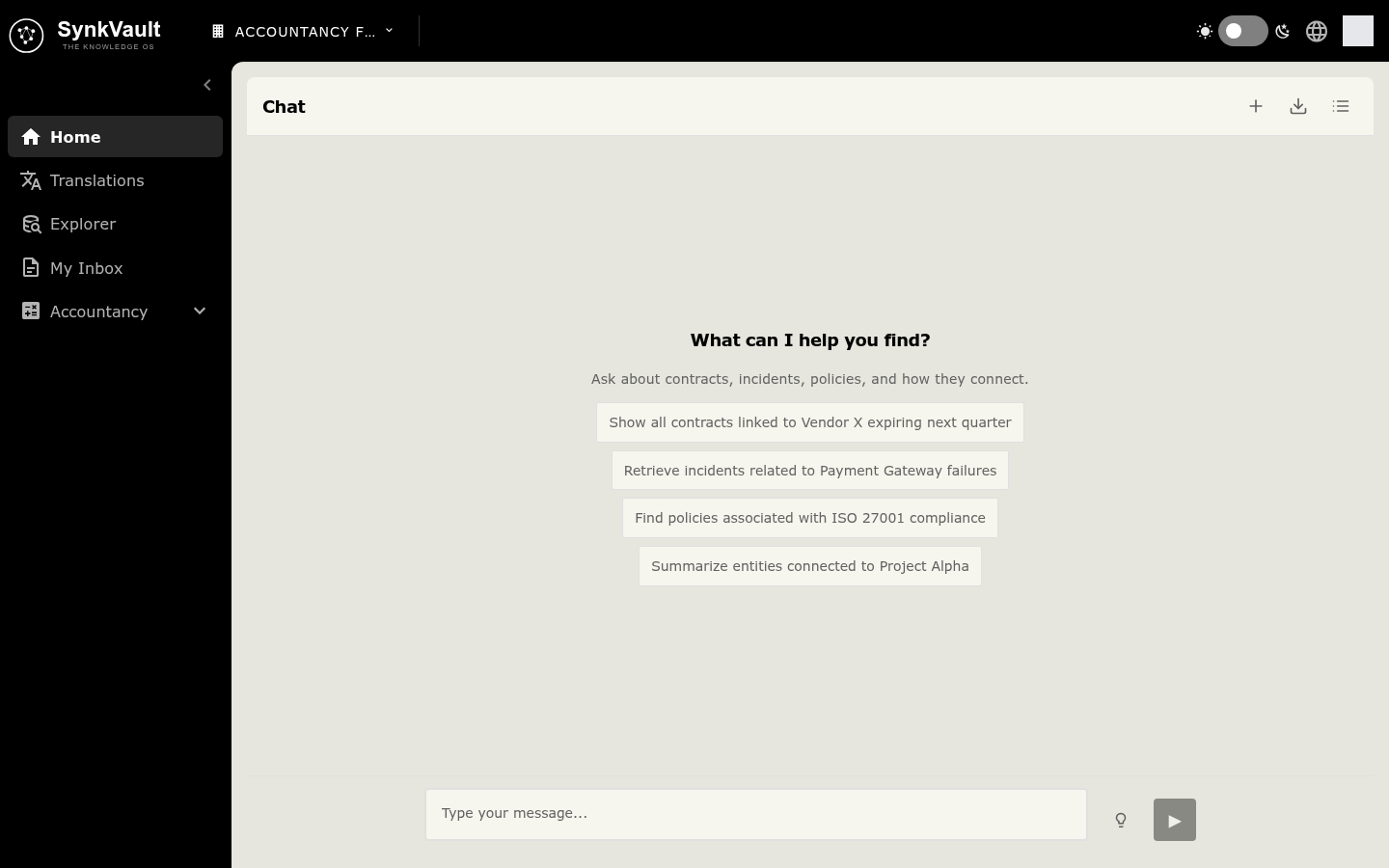
Chat is the home page of SynkVault (/). You ask a question in plain language and SynkVault answers from your organisation's knowledge base. All roles can use chat.
Ask a question
Open chat
Select the SynkVault logo, or go to the home page. The page says What can I help you find?
Type your question
Write in the box that says Type your message.... You can also select one of the example questions.
Send it
Press Enter or select the send button (the triangle) at the right of the box. Press Shift + Enter for a new line. While SynkVault answers, the same button turns into a stop button (a square). Select it to stop the answer.
SynkVault shows Thinking while it works. Select the copy button on a message to copy its text.
Sources of an answer
SynkVault answers from your own records, so it shows where an answer came from. Under an answer, select References to open the list.
- Each entry shows the Origin document, and the Latest document when it is a different one.
- Select a document title to read it inside SynkVault.
- In the viewer, select Download original file to get the file that was uploaded.
- An entry named Relationship source is a connection between two records.
- Source unavailable means the document can no longer be opened.
- A note such as "2 record(s) have no traceable source." means some records in the answer have no known source.
Sessions
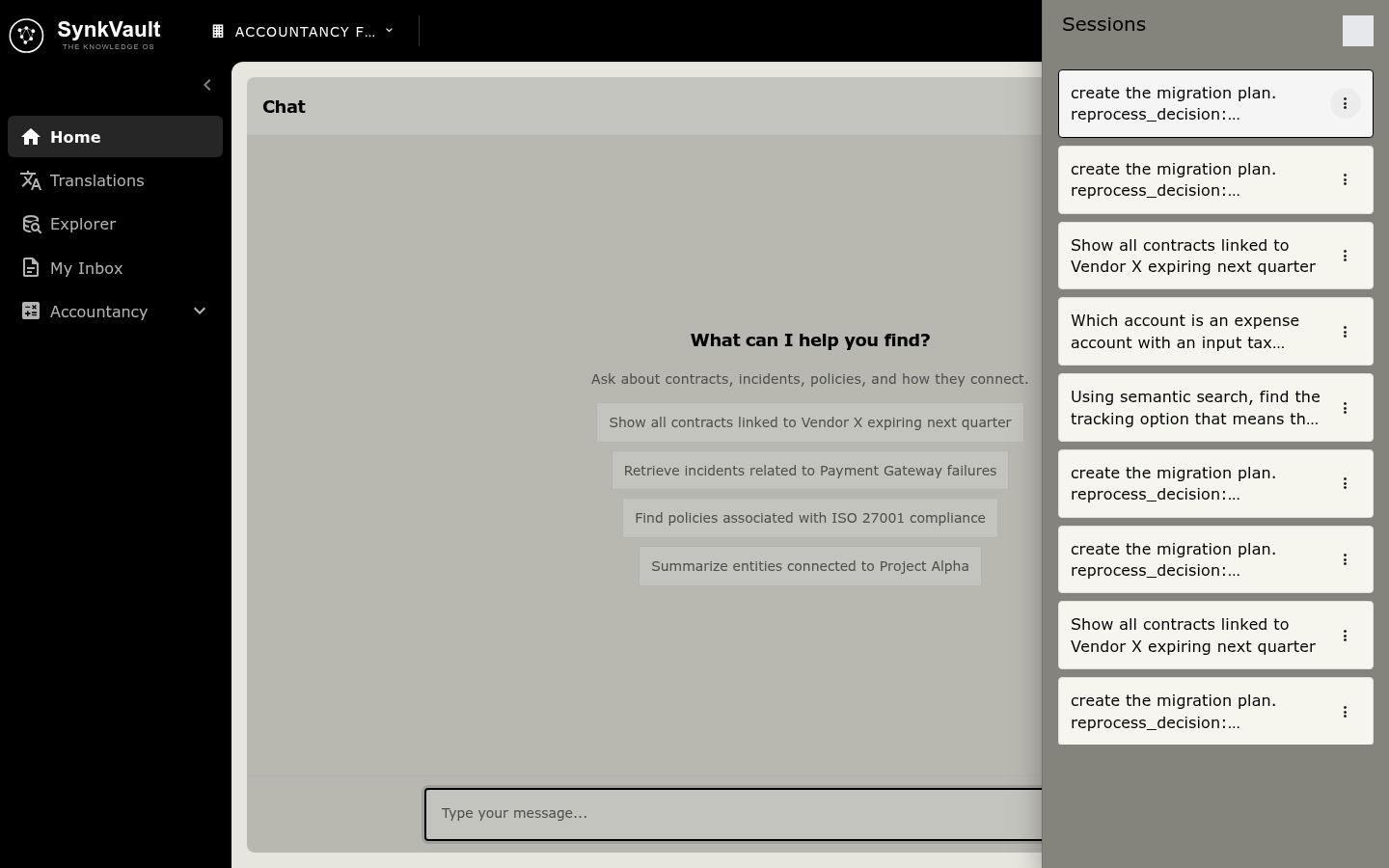
A chat session keeps your conversation and its memory. SynkVault saves it so you can come back later.
The buttons at the top right of the chat show their names when you hover over them.
- New Chat: starts a fresh session.
- Sessions: opens the list of your sessions, with the number of messages in each. Select one to continue it.
- Rename session: select the session title at the top of the chat, type a new name and select Save. You can also open the three-dot menu of a session in the Sessions list and select Rename session.
- Delete Session: open the three-dot menu of a session and select Delete Session. SynkVault asks you to confirm. Deleting removes the session and all its messages for good.
Export a chat or ask for a report
- Export Chat (button at the top right of the chat) downloads the conversation as a Markdown (
.md) file. - To get a shareable file, ask for it in your message, for example "create a report of this". A report card appears in the answer. Select View to read it, or Download and choose Word (.docx), PDF (.pdf) or Markdown (.md).
When chat is unavailable
| What you see | What it means | What to do |
|---|---|---|
| AI Chat Unavailable | No AI provider is configured for your organisation. | Ask your administrator to set up an AI integration. Owners and Admins see a Configure AI Provider button. |
| Chat Unavailable | Your administrator is still setting up the knowledge ontology. | Wait until setup is done. Owners and Admins see a Set Up Ontology button. |
| "Chat service is not connected." | SynkVault cannot reach the chat service. | Contact your administrator. |
| "Failed to get a response. Please try again." | The answer did not arrive. | Try again with Retry. |