
AI providers
Connect the AI provider that powers chat in your organisation.
Chat needs an AI provider. On the Integrations page you connect one for your organisation.
Who can use it: Owner and Admin. To open it, choose Admin Portal in the avatar menu, then Settings → Integrations.
If your organisation uses a fully managed AI service, SynkVault provides the provider for you. The Add Integration button is turned off and shows Only LLM integrations are available, and your LLM is fully managed.
Connect a provider
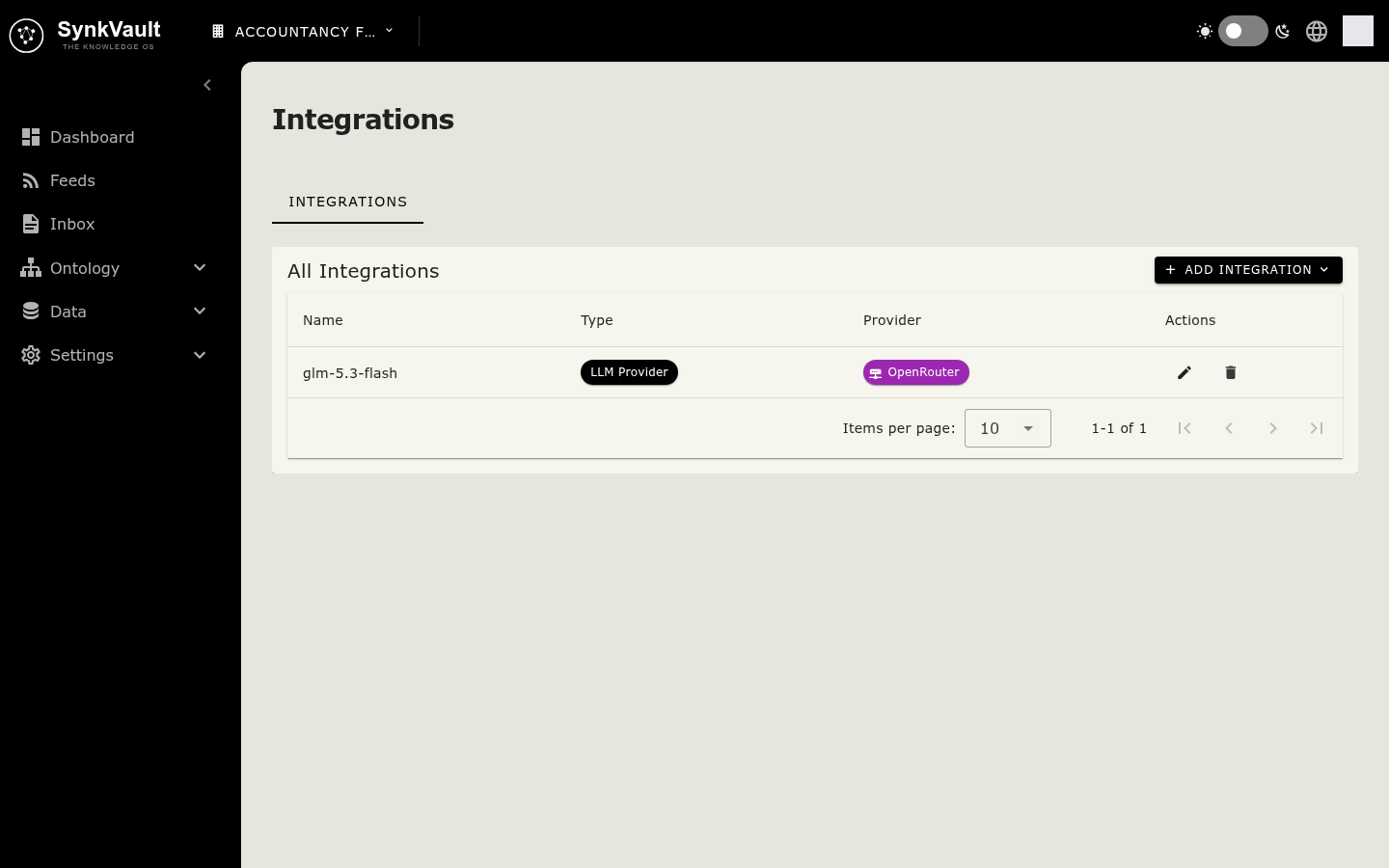
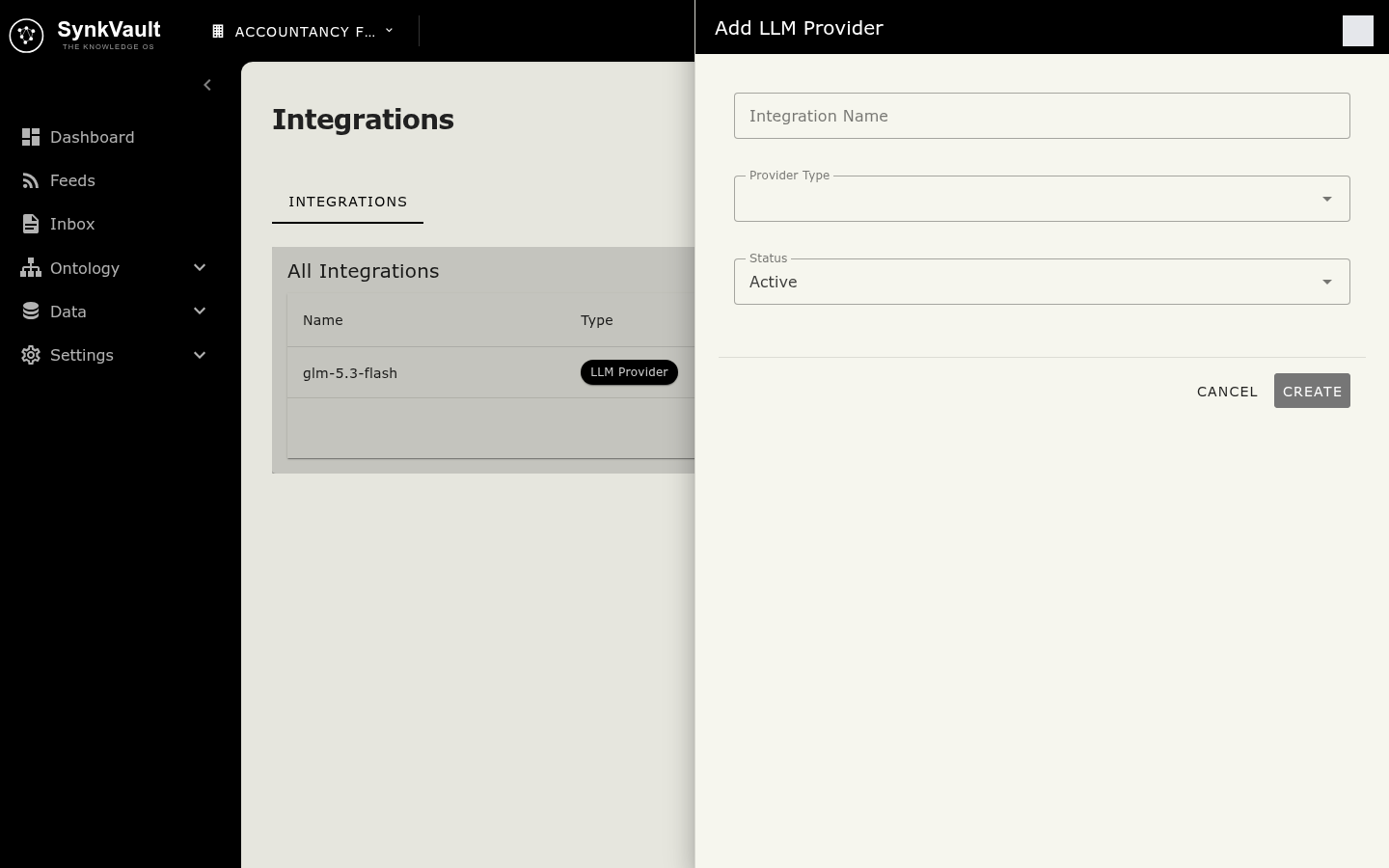
- Select Add Integration, then LLM Provider.
- In Add LLM Provider, enter an Integration Name, for example
openai-prod. - Choose the Provider Type.
- Fill in the fields that appear for that provider, such as the API Key.
- Set Status to Active or Inactive.
- Select Create.
You will not be able to view the key again after saving. Copy it somewhere safe before you save. When you edit a provider later, the key shows as set; leave the field empty to keep it, or enter a new key to replace it.
If you change the Provider Type while filling in the form, SynkVault warns that all authentication fields are reset.
You can also choose Custom Integration to store a Key and Value pair under a name.
Edit or delete a provider
The All Integrations table lists each integration with its Name, Type and Provider.
- Select the pencil icon (Edit Provider) to change it. Select Update to save.
- Select the bin icon (Delete Integration) to remove it.
Check that chat works
Open chat from the main page. If it shows AI Chat Unavailable, no provider is set up yet. See Troubleshooting.